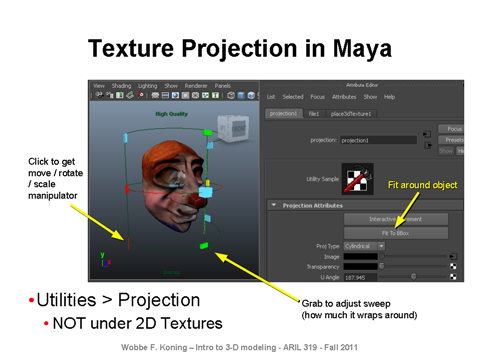
Assigning Textures, Projected Textures
You can assign a texture to any channel, the most obvious being color, by clicking on the little checkerboard after its value in the attribute editor.
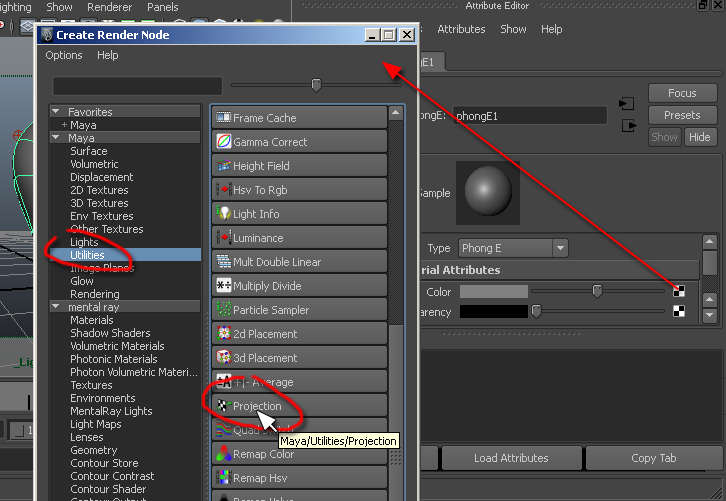
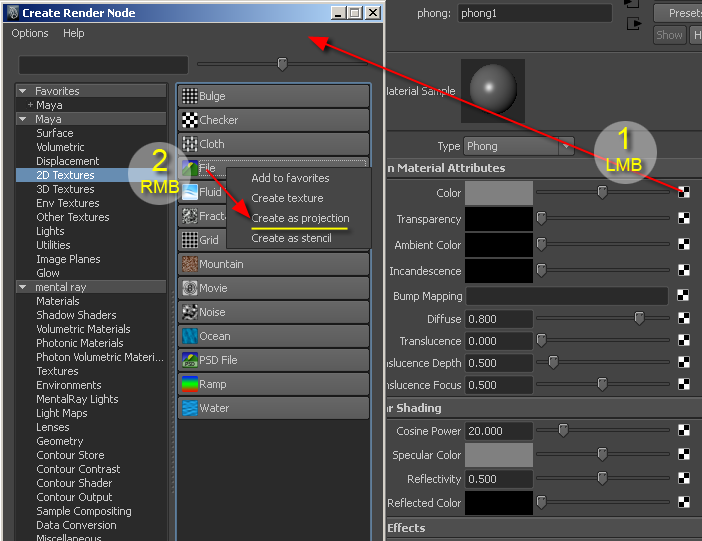
If you want to use a projected texture do not immediately do for one of the 2D Textures in the Create Render Node window that pops up when you click on the aforementioned checkerboard, but choose Projection from the Utilities. Update: You can also Right Click on the 2D texture.
Assigning a texture as projection using your Right Mouse Button:
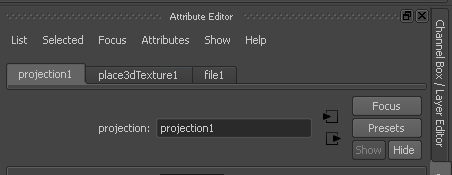 This will result in three nodes being created:
- file
- Which image?
- place3dTexture
- Places projection in 3D space
- projection
- Settings for type of projection, etc.
Here is a lecture slide on how to place the texture: